March 10, 2020

Microsoft Windows 10 Features: Best OS for The Current Trend

Leave a Comment

My first tutorials project is Microsoft’s new operating system Windows 10. The user experience about any software is needful thing in all people who uses them. In my experience, I met most of the people would not have enough knowledge to operate computer or softwares installed in it. So, I decided to help the beginners or intermediate computer users by providing step by step tutorials about main operating system and useful softwares working on it. This was my intension to start Shout Me Tutorials blog and for that I select the new OS release Windows 10.

Before going to windows 10 tutorials in detail, as beginner you must know about the Windows Ten and its features.

What is Windows 10?

Microsoft Windows 10 is the latest operating system (OS) release which is one of the best OS in the current trend. It comes with new and improved features, which uses the best benefits of both Windows 7 as well as windows 8/8.1. Yesterday I got my New Microsoft Windows 10 genuine update to my Dell XPS 15. I already reserved for the Windows 10 updation by using mail id and yesterday that consume about 3 GB of internet data to complete the windows update process.
For the first year, the manufactures provide genuine version of Windows 10 OS completely free of cost. To get free windows upgrade, you must have genuine windows 7 or windows 8/8.1 operating system.

In this version, Microsoft makes major changes and new features such as enhanced start menu, taskbar, Microsoft Edge, Cortana, notification bar etc. You will see each of them in detail in the upcoming windows 10 tutorials. Here I will just brief the new features and enhancements.

Windows 10 Features: Familiar User-Interface (UI)

First of all you must know about the Windows 10user-interface. It is very simple and more user-friendly than the windows 8/8.1. New version contains enhanced start menu is one of the major change of this update. Start menu is looking too good and pleasing to eyes. It is divided into two portions. Left side contains the most used applications, all apps, power button, file explorer and settings. The right side shows the apps inside the windows 10 as in the Win 8/8.1 start menu. The boot-up speed also improved and provides more security than predecessors.

The taskbar is also enhanced with attached search bar, Task view, pinned apps and notification bar. The task view button helps to display currently opened apps in your desktop. It is just like virtual desktop which enables to switch between different workspaces. It also improves the productivity of users.

It also supports the touch devices. You can use it on both touch and non-touch devices with ease. You can also convert the Desktop or tablet view from the settings. If you have touch device, don’t worry it will more productive in that also.

Windows 10 Features: Microsoft Edge Browser

In 2014 survey, Internet explorer is selected as most unsecure and hack vulnerable internet browser. With the new Windows10 Microsoft completely replaces the internet explorer browser with Microsoft Edge. It is one of the unique web browsers as compared with others, because it has some unique capabilities such as annotation of web pages, sharing and more security.

Windows 10 Features: Cortana

Cortana is one of the new and great addition of windows 10 OS, which is act like your assistant. It is also integrated with the search tool in the taskbar. One of the main use of cortana is that act as powerful desktop search engine. It helps to find the all documents, apps, or any relevant content just by typing related single word or phrase. To get it into full functionality you need to sign in with your Microsoft account. Cortana also can understand the your talking language (natural), the searches are also done based on it. It has more capabilities and one of the powerful tools from the Microsoft. You can use it as reminder, mail sender or will done most of the work for you. You can see it in very detail with windows 10 tutorials posts.

Windows 10 Features: Performance

In case of performance, Windows Ten is running very smoothly on my first generation Intel i5 processor with 4 GB RAM and 1 GB Nivida Geforce 410M graphicscard. The boot-time and shutdown times are very much improved and faster than the windows 7 and windows 8/8.1. The Windows 10 is associated with new sleep feature called “Hybrid Sleep”. It is combination of both sleep and hibernate which helps to save the battery charge and prevent the data loss due to power failure. The file copying also works smoother than the preceding OS versions.

Windows 10 Features: Multimedia and Gaming

The Xbox gaming integration is major update in this category. It helps to stream the Xbox games through the windows 10 and you can also download the games from the library for both pc and Xbox system using the Xbox apps. The DirectX 12 helps very much in gaming by reducing the CPU load and conveys them to GPU’s. There by games will perform more efficient and consistent way.  

The new Groove music player app is also good and better managing of music files and also you can connect with windows store for buying new ones within the app. The FLAC and HEVC codec and Matroska media containers are helps to support more formats for windows media player.
These are the main advantages of this wonderful operating system. But I felt some disadvantages and I don’t think that are too much serious.

The windows update control is completely at loss, which forcefully receive updates by consuming internet data. You can only prevent this by metered connection setup. Updates will not download for the metered internet connection.

The Microsoft account sign in is needed for the trouble free working of most of the apps contained in the Windows 10. Mainly the Calendar and mail apps must need the Microsoft account signin.
These are the main features of Windows10 operating system. If you have genuine Windows 7, Windows 8 o Windows 8.1 OS, you can apply for the free windows 10 upgrade for lifetime. If you are using older version of windows you must check your device is compatible with the upgrade by contacting with desktop/laptop/tablet provider or installing the Get windows10 app. The OS is available online for buy starting from $ 119.

Windows 10 System Requirements

  • Operating System: Windows 7 Service Pack 1/Windows 8/8.1
  • Processor: 1 GHz Intel or AMD processor or higher
  • Size: 3 GB
  • RAM: 1 GB or higher
  • HDD Space: 16 GB (for 32 bit)/20 GB (64 bit)
  • Graphics Card: DirectX 9 or higher
  • Developer: Microsoft
  • Languages: Multiple Languages
  • Price: Free for Genuine Windows 7/8/8.1 users or Buy now


Overall

Windows 10 is one of the best operating system I ever used and performs better in my dell XPS 15 laptop than Windows 7 OS. The speed is improved and have very user friendly interface. The windows store can access form the taskbar, where you can download or buy apps according to your need and have wide support of apps like in the Google play store. The Xbox integration is one of the major gaming changes in windows10 and helps to stream games for console users. The Microsoft edge and Cortana features are amazing, powerful and have many future capabilities. It also improves the productivity of users by handling the multiple tasks in a single desktop. Anyway I like more than any OS, because it is simple, user-friendly, better performance and provide more security.


Read More

March 09, 2020

Microsoft Windows 10 Taskbar Explained

Leave a Comment
Do you know about the new Microsoft windows 10 taskbar and available options? It is a dark black colored portion, located at the bottom of the desktop by default. The taskbar is one of the important windows 10 user interfaces, which have functions such as shows the presently running tasks, help to access them, allows pinning of favorite apps or files, managing the running apps etc. These are also called the main functions or abilities of windows 10 taskbar. It contains the, start menu button, Cortana search box, taskview, Microsoft edge browser, file explorer, windows store and other options.


Note of Readers: If you are an expert in windows 10 or windows other operating systems, please quit and this is mainly for people have very less knowledge in computer or windows operating systems. I mean these Microsoft windows 10 tutorials are only for beginners and people likes learn this operating system in depth. 

In this new OS, you can place taskbar as your wish. It also has property value, which controls customization and other options. This post try to cover the full options of Windows 10 Taskbar and it is very important to learn each of them, if you are starter level learner. If you feel I miss something, feel free to comment me.

Let us see each one of the features of in detail.

TaskView

TaskView is new feature added to windows 10 operating system which helps to show the running apps. It mainly helps to create more than two desktops in a single computer. You can call it as “Virtual Desktop”. I mainly used this virtual desktop for differentiating my work desktop from gaming, social networking etc. That is one desktop for my shoutmetutorial.com blog works, another one is for pc games etc. You can create unlimited number of virtual desktop if you need it.

Cortana Search Box


Cortana is special feature which enables to automate most of the common jobs or functioning of your computer. The Microsoft tries to convert your computer like a talking and functioning robot as per your need. I don’t know how much impact for a common man’s life? In my prediction, it is very useful for business persons and people are very busy with their life.   

The Cortana is semi automated robot helps to search files, create reminders, and search on web, find and opening some of the apps inside in your PC. All you need to first learn your voice to the cortana. It is very easy and I will shows later. For the effective utilization cortana, be ready with your microphone and internet connectivity of your computer. 

Cortana user interface is very simple and you can access it from the taskbar search bar by clicking on it. Before going to you must have Microsoft mail account. If you don’t have Microsoft mail id, visit Microsoft official website to make one.

Microsoft Edge


Another major addition of Microsoft windows 10 is “Microsoft Edge browser”. The internet explorer 11 is still here for browsing, but I think Microsoft edge is better and faster than explorer 11. In 2014, Internet Explorer old versions hack vulgarity issues are grown very much and Microsoft rethinks the more secure browser than explorer. I think it is will lead to great addition of this Edge browser. Anyway, it is very cool browser integrated with bing search bar, webpage share options, you can annotate the important parts of the web page and very much read friendly than internet explorer.

File Explorer


File explorer button helps to directly access the files in your storage space (Harddisk). You can easily access the documents, pictures, videos, music, downloads, This PC etc via, File Explorer. You can also access this option from the start menu. For user easiness, windows 10 is pinned this button to taskbar by default.

Windows Store


Windows store is cool app which helps to access the more Microsoft apps collections; contains both free and paid apps. You can install the each apps in your pc from the store. You need a solid internet connection for downloading these applications from the windows store. One of the great advantage is you can play most of the Smartphone (android and windows ) games, networking apps in your pc.

Taskbar Properties


Windows 10 Taskbar have some property values, you can access by move your mouse pointer to the taskbar and click mouse right button. Then you see the menu as shown below in the image.


Here you can see certain options like Toolbars, Cortana, Show Task view button, Show touch keyboard, Cascade windows, Show windows stacked, show windows side by side show desktops, task manager, lock taskbar and properties. These all options are used to control the taskbar task’s and views. Here I just cover each taskbar menu options and will shows each option tutorials in upcoming posts.

Toolbars: Toolbars are helps to add some of the important tools to your windows 10 taskbar. It contains the address tools, link tools, supportassist, and desktop tools. Also you can add new toolbars to your taskbar.

Cortana: It helps to control the view of cortana in your taskbar area. By using this menu option, you can hide, show cortana icon or show the cortana search box.

Show Task View Button: It helps to enable or disable task view button from taskbar.
Show touch keyboard: The touch keyboard option is very useful in your pc enabled with touch display or windows 10 tablet. This option helps to enable or disable the view of keyboard.

Cascade Windows: Cascading the opened task or apps interfaces in your desktop.


Show windows stacked: It helps to arrange the all opened windows tasks in desktop like stacked view.


Shows Windows side by side:  It helps to arrange the opened apps in side by side manner.

Show Desktop: If you want to minimize the all opened tasks with one click, you just select the “Show Desktop” option.

Task Manager: It is one of the important feature which helps to manage all foreground and background apps in your windows 10 pc. You should take care of dealing with this. I will show you some of the important uses in the upcoming windows 10 tutorials.

Lock Taskbar: It helps to lock or unlock the taskbar in your desktop area. You can change the position of taskbar to either two sides or upside of your desktop by unlocking it using this menu option. For changing, click and hold left mouse button and drag it towards the side as you need to place your taskbar. It’s done.

Properties:

The property dialogue box is accessed using the above menu option. You can see three subsections such as taskbar, navigation and toolbars.

Taskbar Tab
You can lock taskbar, enable auto-hide, change the icon sizes and customize the taskbar and notification area. Here I’m show the favorite options checked and customization tips in the image. You can set your taskbar like this or your own style by selecting the other options. It is very simple and no danger moves involved in it. You can also customize the notification bar with in this property.

Navigation tab helps to replace your command prompt with windows powershell in the menu when I right click on the lower left corner or press “windows key + X” on your keyboard.
Toolbar tab bears the same toolbars as explained at the top of the taskbar properties.

Overall

Windows taskbar is one of the important user interface of windows 10 operating system. As a beginner you should understand the taskbar and its capabilities, because it will be more helpful in advancing the learning of windows 10. You can see the more applications of windows 10 taskbar in the upcoming tutorials.

If you have any suggestions or opinions about this post, feel free to comment.

Thank you friends. Happy learning!  
Read More

March 08, 2020

Windows 10 UI: New and Improved Start Menu

Leave a Comment

With the new Windows 10 Upgrade, I got totally changed start menu with much improved and good looking as compared with Windows 7 as well as Windows 8 operating system. In windows 8 start menu buttons was completely eliminated, which affects user friendliness of this OS. It will slightly eliminate with windows 8.1 update, but the desktop filling view also makes problems with users.  

This post contains the start menu options introduction and uses of them explained. The detailed Windows 10 tutorials of each option are coming through the upcoming posts of Shout ME Tutorials.
The new Windows 10 user interface very first improvement is made to the start menu by combining the plus sides of both Windows 7 and 8 start menus. The position of start menu is not changed and you can find this button at the bottom left corner and just look like this.

The new Windows 10 Start Menu is just look like a website page with two columns. The sidebar is located at left side and right contains the apps tiles just like windows 8/8.1. Let us see the different portions and options contained in the start menu.


Windows 10 Start Menu: Account Control

At the Top left corner of your start menu, you can see your PC name or account name which is used to Log in to your PC. If you just click on the top of it, you can see the “change account settings”, “Lock”, and “sign out” options.

Change Account Settings: This is main control center of your log in account. Here you can set your profile photo, name, sign in methods, add additional users, work access and synchronize your setting with Microsoft account.

Lock: If you want to lock your screen without closing your desktop, select this option. It will shows the beautiful lock screen background and you can sign in your account only by entering password, if you set one for your account.

Sign Out: You can exit or log out from your windows 10 pc user account. It will direct to the sign in page.

Windows 10 Start Menu: Most Used Area

You can find the “Most Used” option at the left sidebar of your start menu, just below the account option. It shows the applications or windows programs which are most used for work or personal jobs. It is arranged one by one by the of most frequency sort technique.

Windows 10 Start Menu: File Explorer

The file explorer is just like the most used area. But the file explorer contains only the frequent used file locations. It is also categories into two sections; Pinned and Frequent. The pinned catgory helps to find the most used pinned file main folders and frequent contains the most frequently used files and folders. It will only shows, if you click on the side arrow of your “File Explorer”.


If you directly click on the this option, it will directed to your “My PC” option. That is replace of your “My Computer” option in the windows 7 os.

Windows 10 Start Menu: Settings

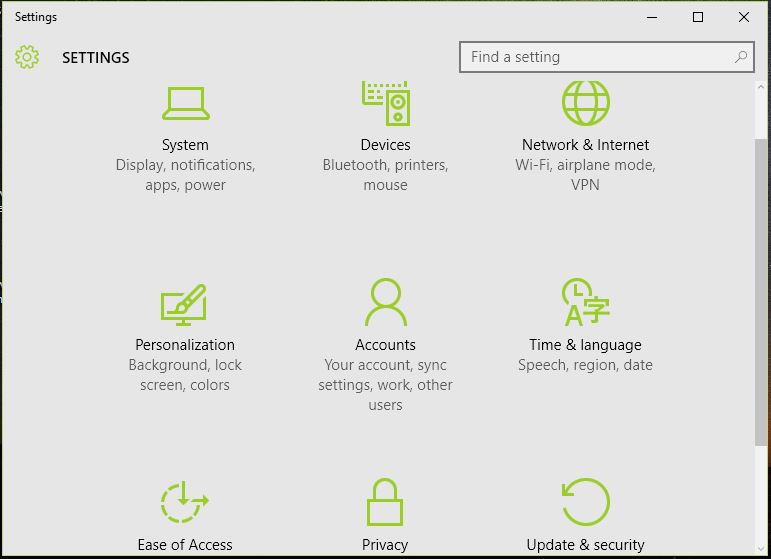
Do you heard about the Control panel option in both windows 7/8 os? If you not, Windows 10 replaces with “Settings” option. Here you can control the full windows 10 operating system with some restrictions. You can access system display, notification settings, power, apps installing/uninstalling, add or remove devices (mouse, keyboard etc), Network and internet control, Personalization, Accounts, Time and language, Ease of access, privacy, update and security settings. You will see each one of the settings tutorials in upcoming posts.

Windows 10 Start Menu: Power

The “Power” option helps to control your PC power on/off or hibernations. It contains three sub-options such as Sleep, Shutdown and Restart. The “Sleep” option enables to tempory closing of your display and help to save some battery power. The new windows 10 sleep option is the combination of both sleep and hibernate modes. It helps to save battery charge and when your pc is inactive without losing the work.

Windows 10 Start Menu: All Apps

This is last option of the start menu sidebar shows the all apps or programs installed in your windows 10 system. The apps are sorted with both numbers and English alphabets. You can also see the installed program folders and my system files through this option. The alphabetic categorizing will help to locate the apps as you need at the right time without any difficulties. It is a value addition for the user friendliness of windows 10.

Windows 10 Start Menu: Tiled Apps

In the windows 10 startmenu, you can see the “Tiled apps” at the right side of the menu. By default it contains some apps like Groove Music, Movies&TV, News, Flipboard, Calendar, Twitter, Weather, Smartphone & PC games, OneNote etc. If you installed new apps via windows store, it will come to this area.

Overall

This is post about the Windows 10 start menu which is really improved from the windows 7/8 system. You can find the basic options contained in your new start menu and its functions. The search bar and start menu are always connected well, because when you open the start menu, it will automatically enable for getting the any search phrases for finding it on your computer as well as in the internet. In the upcoming tutorials, you can find the windows 10 tutorials with detailed images and videos.

Thank you friends and share your honest opinions about this post and SoftTutorialsblog via comment or contact form.

Read More

March 06, 2020

Windows 10 User Interface - Windows 10 Tutorial 1

Leave a Comment

Microsoft Windows 10 is one of the best trending operating system (OS), which is simple, easy to use and better performance than older Windows OS. You know Windows 10 UI is much more improved and combines the best parts of both Windows 7 and windows 8 operating system. It is very user friendly and easy to learn the new portions, mainly designed for touch as well as non-touch devices.
Here I am talk about the Windows 10 tutorials completely for beginners and intermediate users. So, I need to explain the each and every part Windows 10 user interface to them. This tutorial post only covers the main user interface portions from lock screen to desktop interfaces.

Main Windows 10 User Interface

Lock Screen with Log in

When you press your computer or laptop power button, after the booting you can see the first user interface of Windows 10, that is the “Lock Screen”. The bottom left portion shows the time, day and date information’s and right bottom shows the “ connect to internet” and batterylife. Below shows the lock screen image.


From the lock screen you log in to your windows 10 system desktop. To get the log in screen you just click anywhere or press “enter” in your keyboard, which is shown below.


The center shows your photo (if add to your account),name of your computer and password entering portion. The bottom right side contains the “connect to internet”, “ease of access” and “Power button”.

Connect to Internet: It helps to connect your pc with internet via, Wi-Fi or modem. This option is also available in your Windows 10 desktop. 

Ease of Access: It is very helpful option for people having small eye sight problems. It contains the Narrator, Magnifier, On-board screen keyboard, High contrast (ON/OFF), Stick keys (ON/OFF) and Filter keys (ON/OFF).  On board keyboard is mainly for touch screen device to enter the password in the specified location. And click on the side arrow button to get into windows 10 desktop interface.

Windows 10 Desktop


This is main UI of windows 10 called as “Desktop”. It contains the quick short cut icons of my computer and different other windows 10 programs installed in your pc. The “MY Computer” or “My PC” helps to explore the different locations of your stored files in the harddisk. You can also store the different files, folders, videos, pictures etc in the desktop area. The desktop background images enable the more attractive look to desktop and very pleasing to your eyes. You will see the detailed windows 10 tutorials in upcoming post of SoftTutorialsblog.

The bottom dark potion is called taskbar and it contains the windows 10 start menu, cortana search bar, task view, Quick access pinned icons of Microsoft Edge, Windows store, Documents, battery life, sound, internet, notifications and other icons. 

Windows 10 Start Menu

If you are using the Windows 8, you should understand difference between start menu with or without operating system. The Microsoft introduces an improved start menu by combining the windows 7 and windows 8 positive features. 

The startmenu is very simple and look like fluid two column website page. The term fluid mean you can adjust the size of your start menu by dragging the sides of it. The left side contains the ALL apps, file explorer, power, settings and most used options. The functions of these options will explain in the upcoming windows tutorials in very detailed manner.

The right side contains the useful Microsoft windows apps such as calendar, news, mail, weather, cortana, Groove Music, Movies&TV, windows tore apps etc. You can access any programs installed in the windows OS via start menu and helps to access the main computer settings windows through it.

TaskBar

The bottom dark colored bar is called the new Windows taskbar. It will help you to see the currently active or opened windows programs in your computer. The new taskbar is attached with search bar, task view button, Microsoft edge, windows store, documents explorer and other items.
The search bar helps to find any file or programs in your computer by just type the single word or related phrase. This search bar is also combines with Microsoft’s new feature called cortana, you will see the cortana in later posts.

Another special feature of taskbar is Task View button. It will help to create the virtual desktops and enables the multi tasking in windows 10 very effectively. You can create virtual desktops for your work, another for gaming and other for social networking etc.

Microsoft Edge browser is another icon pinned in the taskbar. This is windows 10 new browser which is very much improved in UI, browsing speed and security as compared with internet explorer. It will also comes with special features of annotating, share bars etc.

The documents folder icon helps to quick access to your document saved files without any hassle. It is just like the File Explorer, which are categories by the frequency of use. That means the folders and files are grouped and arranged as per most used items.

The Windows store app button enables to explore the both free and paid apps from the Microsoft’s store. You can easily find any apps as you want to install on your computer with store browser. One main thing you need a solid internet connection for proper working of this app.

New Notifications bar

The notifications bar is also improved from the older OS’s and combines with action center and some quick access options such as brightness control, PC/Tablet view, all settings, Airplane Mode, VPN, Battery saver, Wi-Fi enable/disable etc.  The new notifications are instantly notified and remains in the action center till you view it.

Overall

These are the main windows 10 user interface, which is very much user friendly, simple and easy to understand for any people. It is designed to increase the productivity of users. This windows 10 tutorial post only explains the most used UI and if you have any doubt in this post or windows 10 UI, feel free to ask via my contact form or comments.

Thank you friends and learn windows 10 operating system with SoftTutorialsblog.

Read More

March 05, 2020

Minimum Windows 10 System Requirements for PC

Leave a Comment

Windows 10 is one of the latest operating system which is current at the doorway of genuine windows 7 or windows 8 pc. But most of them are confused about the windows 10 system requirements, due to the new update. If you have doubt about the system compatibility, check it with Get Windows 10 app (It will get through the windows update). If you are not using windows 7/8/8.1 or other OS, you can buy it from the Microsoft store at $ 119 for home version.
 
This post is part of Windows 10 tutorial for helping people find out the correct system specification before installing the upgrade.  It shows the minimum and recommended system requirements for smooth working of windows 10 operating system.  I already mention the overall system spec for getting free windows 10 upgrade in my previous post. Here you can explore more to find out the best system specs for this OS.

Minimum Windows 10 System Requirements


Operating System

First you must know about the supporting windows operating systems for pc versions. Windows 10 needs minimum latest version of windows 7 service pack 1 (SP1) or windows 8 or 8.1 OS (32 and 64 bit). If you have Home premium, basic or starter version of windows 7, after upgrading get Windows 10 Home version. If you are using a professional or ultimate version, you will get Windows 10 Pro version. Currently there is no ultimate version of Windows 10 is not released. Some of the excluded OS‘s from the free upgrade are Windows 7 enterprise, Windows RT/ RT 8.1 and Windows 8/8.1 enterprise.

Processor

The minimum CPU is need for working of Windows 10 is Intel Pentium 4 with 1 GHz cloak speed or AMD Athlon XP 1600+ or higher. The processor cloak speed must be higher than 1 GHz and having 1 GB RAM for lagless working of Windows 10 operating system. But better processors are recommended with higher cloak speed and 2GB RAM or more.

Hard Disk (HDD) Space

The windows update requires 3GB internet data for full download, but the Windows10 installation should need 20 GB hard disk space (HDD space) or more. The HDD space is depends on the processor architecture whether it is 32 bit or 64 bit. The 32 bit processor needs 16 GB HDD space and 20 GB for 64-bit. This is the minimum HDD space requirement for the latest windows update.

Display Specifications

You must need a minimum 800x600 pixels resolution screen. When I use the windows 10 upgrade, my display resolution is changed from 1366x76x pixels (Windows 7 Home premium SP1) to 1024x768 pixels. I was just stunned what happen to my display. This happened because the old display drivers are not compatible with Windows 10. The driver is automatically installed and gets back the 1366x768 pixel resolution back on this new OS.

Graphics Card (GPU)

According to Microsoft, you should need Graphics processing unit (GPU) direct 9.0 or later with WDDM 1.0 driver. If you have Nvidia Geforce 6500 series or AMD Radeon HD 2100 series GPU, it run on your system without any hassle in  both in terms of performance and display.

Languages

The multiple language support is special feature of Windows 10. The supported languages are Arabic, Bulgarian, Chinese, Croatian, Czech, Danish, Dutch, English (UK & US), Estonian, Finnish, French, Germen, Greek, Hebrew, Hungarian, Italian, Japanese, Korean, Latvian, Lithuanian, Polish, Bokmal, Romanian, Russian, Serbian, Swedish etc. To know more about the minimum system requirements, see the Windows 10 specifications.


Recommended System Specifications for Windows 10


  • Processor: Intel Pentium 4 Dual core E2100 series/ AMD Athlon 64 3200 series
  • RAM: 2 GB
  • GPU: Nvidia Geforce GT 230/AMD Radeon HD 4650
  • DirectX: 9.0
  • HDD Space: 16 GB (32-bit)/20 GB (64-bit)

This is all about the Windows 10 system requirements contains the minimum specifications in detail. It also included the recommended system specs for windows 10.

Feel free to share your honest opinions about this post.

Read More

September 10, 2018

How to Convert Image Text to Editable or Searchable Text Tutorial

Leave a Comment

Convert Scanned Image to Editable PDF/Text


This is a video tutorial of Nitro Pro PDF software helps to convert scanned image pdf documents to editable and searchable pdf/text within 2 to 3 clicks. Nitro pro software is one of the best pdf creator editor software helps to make editable pdf from scanned image documents. It uses OCR technology (optical character recognition) which enables the ability to do the same with scanned images pdf.

Steps to make editable PDF from Images


  1.  install the Nitro pro pdf software on your computer
  2. Select scanned image and make image files into pdf using nitro pro pdf software.
  3. then, go to Edit option of nitro pro software
  4. click on OCR option from the edit tab. 
  5. Select either make searchable or make searchable and editable option
  6. click ok.
This way you can create searchable and editable pdf/text using nitro pro software. See full Nitro Pro PDF tutorials for beginners.


Read More

November 10, 2017

How to Blur/Hide Personal Informations in Video using Camtasia|BestSoftwareGuru

Leave a Comment
Hi friends, today you are going to learn how to blur or hide personal/private informations (email, password, phone no etc) in video. Here i am sharing this video tutorial which helps you to learn the procedure to blur your important informations in video from viewers. You can blur or hide informations like password, emails, phone no, creditcard info, your face etc. This is done through one of the best screen recording and video editor software "Camtasia". You can watch this tutorial video and i hope this will helps you to make more online video tutorial videos by blurring or hiding the personal information's.

Watch How to Blur/Hide Private Informations in Video now:-


This video is published by BestSoftwareGuru.
Read More

October 26, 2017

How to Download Online Videos from Any Video Sites

1 comment
Hi friends, welcome to SoftTutorials blog and today, you are going to see tutorial about how to download online videos from any video sites. Here I am introducing a  new online video downloader which is found on internet. Also you can see both video and step by step explanation to download online videos from the famous video communities like youtube, facebook, vimeo, dailymotion, ted and other sites.

Read: How to Download YouTube Videos using VidConv.net

Let us see how to download any video from any site using url. Before going to tutorial, your pc should connected with solid internet connection with high speed is recommended.

Watch Video Downloading Tutorial on my YouTube Channel:-


How to Download YouTube Video Using Savido.net

Here i am showing a example for downloading video from YouTube using Savido.net.

Read: How to Download Videos from YouTube, Facebook using Savevid

Step 1

Open your internet browser and go to YouTube video community site. And Select your video as you want to download.

Copy the url of the video.

Step 2

Go to Savido.net and paste url on the required search bar of Savido dot net.

Step 3

Click on the 'Download' button and it will show the different download links of the video. It is available in different formats like MP4, Avi, m4a, webm etc and with different resolutions. You can also extract audio from the video as you selected for download.

Step 4 

Click on Download and it will direct to new tab. Then wait for loading the video in that tab.
Then "right click mouse button' and select 'Save Video as'.
 And save video to your pc.

Tags: download youtube videos mp4, download any video from any site using url, youtube video downloader free download, download youtube videos mp3, savevid, Vidcon,

Read More

April 16, 2016

How To Download Youtube Videos using Vidconv.net

1 comment

Vidconv.net Tutorials - How To Download YouTube Videos


Today, YouTube is the largest video sharing community in world and have billions of video resources for automotive, blogging, howto tutorials, gaming, cooking and more. YouTube also allows to share or embed videos in your social bookmarking or blog sites with ease. But, it will not provide a download button or link under each video. I didn't know, why YouTube doesn't provide that? Don't worry about that, there are many YouTube video downloading tips are available all over the internet.
Read More

July 23, 2015

Mozilla Firefox Tutorial: HowTo Install, Browse, Setup Firefox

Leave a Comment

Basic Mozilla Firefox Browser Tutorials


We all know about the Mozilla Firefox internet browser, which is one of the best internet browser is terms of speed and security. The simple Firefox User-interface makes it more easy to surf through the world wide web (internet). However, still most of the people did not know how to do things with this web browser. This firefox tutorial is mainly for beginners and intermediate users of internet. If you know how to do things with Firefox, just get out here and it will worth you. Checklist Needed for Tutorial
Read More